
bjs CLI User Guide
The BabylonJS Market member CLI — a self-contained, npm-free bjs binary with a
retro BBS terminal interface for browsing the marketplace, scaffolding projects,
pulling components and assets straight into them, and submitting your own work
for review.
Installation
One curl command. No Node, no npm, no Bun required on your machine — the
installer detects your OS and architecture, downloads the prebuilt binary,
verifies its SHA-256 checksum, and drops it in ~/.local/bin.
Verify it's on your PATH:
If your shell can't find bjs, make sure ~/.local/bin is on your PATH
(reopen your terminal, or add export PATH="$HOME/.local/bin:$PATH" to your
shell profile).
The binary keeps itself current — see Staying Up to Date.
It reads the same ~/.bjs/config.json the old npm CLI used, so if you were
already logged in, that login carries over.
Quick Start
Authentication
Login
Authenticates via the OAuth device flow. It opens your browser to a page where you confirm a short code, then waits for approval.
On a headless box or over SSH, skip the browser launch — bjs prints the URL
and code for you to open elsewhere:
Who am I
Prints the account the current token belongs to, and the @handle you publish
under once you have one.
Logout
Clears the stored credentials in ~/.bjs/config.json.
Projects
bjs downloads land inside a create-arcade project. Rather than a single
"current directory" guess, it keeps a default project that downloads drop into,
which you can override per command.
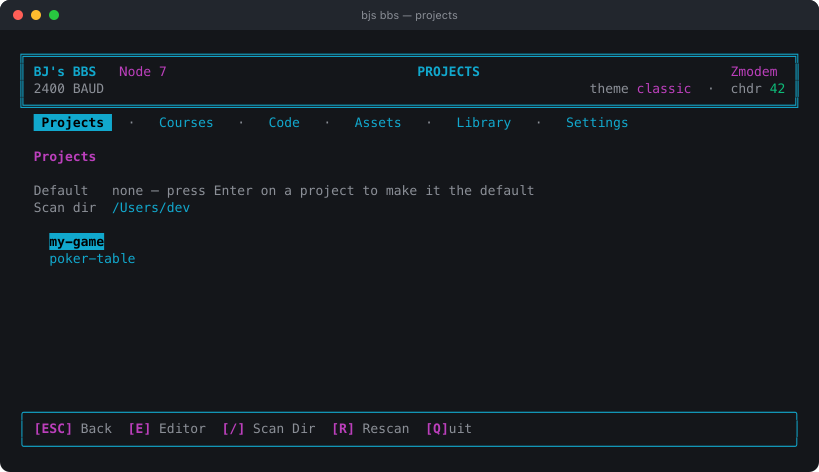 The Projects section: every scaffolded project found on disk, with the default marked
Scaffold a new project
Spins up a fresh create-arcade project and sets it as your default download target.
| Option | Description |
|---|---|
--kind <kind> | game or arcade (default: arcade) |
--renderer <engine> | babylon, babylon-lite, or three (default: babylon) |
--overwrite | Replace existing files in the target directory |
--no-use | Don't set the new project as the current download target |
Omit the directory to choose interactively.
Set the default project
Point bjs download at a project without passing --project every time:
Downloading Components & Assets
bjs download <slug> resolves the slug as a marketplace asset key first, and
falls back to a library component name if there's no matching asset.
| Option | Description |
|---|---|
-o, --output <path> | Extract/output destination (default: the project's public/, else the current directory) |
--project <path> | Target a specific project for this download (overrides the default) |
--no-open | Don't open the preview scene in a browser |
Download a component's example scene
bjs download scene <name> pulls a component's example scene (asset key
scene-<name>) into public/scenes/<name>/ and previews it.
| Option | Description |
|---|---|
--components | Also acquire + install the components the scene needs |
--assets | Also download the mesh/media assets the scene needs |
--all | Resolve both components and assets |
--buy | Quote the whole scene, buy anything you don't own (topping up cheddar if short), and install everything |
-y, --yes | Skip the confirm-before-charge prompt (used with --buy) |
-o, --output <path> | Override the extract destination |
--project <path> | Target a specific project |
--no-open | Don't open the preview scene |
Publishing to the Marketplace
Claim a publishing handle
Everything you submit is published under an @handle, so your work has an owner
in its address: a component you submit as Magnet is listed as
@yourhandle/Magnet. Someone else can ship their own Magnet under theirs, and
neither of you has to rename anything.
You are prompted for one the first time you submit — there is no separate signup step, because a member who only downloads never needs a handle. Handles are permanent, since other people's scenes and scripts will reference yours.
The handle is a catalog address, not a rename. Once the component lands in a
project, scene JSON still says "Magnet" and the folder is still
src/components/Magnet/. Same split npm makes between @scope/name and the
local binding you import.
Submit components & systems
bjs submit component packages a component or system from your project and
submits it for curator review. It auto-detects the target package and the
closure of files your component pulls in.
| Option | Description |
|---|---|
--target <target> | arcade or viz (skip auto-detection) |
--source <path> | Override <cwd>/src/components/<Name>/ |
--layer <layer> | viz only; skip per-file layer detection (core, solid, ecs) |
--force | Allow overwriting an existing target |
--dry-run | Print the plan, write nothing, submit nothing |
--project <path> | Read components from this project instead of the current directory |
Start with --dry-run to see exactly what would be submitted.
Submit a media asset
| Option | Description |
|---|---|
--title <title> | Display title (defaults to the file name) |
--description <text> | Short description |
--tags <list> | Comma-separated tag slugs (e.g. vehicle,sci-fi) |
Accepts meshes, audio, video, and textures (.glb, .mp3, .mp4, .png, …).
Submit a scene
Reads <project>/public/scenes/MyLevel/ and ships the same zip shape a scene is
downloaded in, so bjs download scene MyLevel unpacks a member's scene through
the code path that already handles ours. Takes --project <path> and
--dry-run like the others.
bjs injectandbjs inject-assetstill work, hidden from--help. They were the original spellings, borrowed from the private operator tool, and they pointed the wrong way:bjs downloadalso puts code into a project, so the verb alone never said which direction anything moved. Usebjs submit.
Track your submissions
list accepts --limit <n> (default 20). Any of these takes --json for
machine-readable output; withdraw takes -y to skip the confirmation.
Cheddar
Cheddar is the marketplace's spendable balance. Check it and your recent ledger activity (purchases, top-ups):
bjs credits is an alias for the same command — the name it shipped under, kept
working so older docs and muscle memory still land.
Your balance also rides in the BBS masthead, and the Library section shows it above everything you have spent it on.
The BBS Interface
bjs bbs is the marketplace as a full-screen terminal app. The nav mirrors the
website's — the same courses, components, assets, and account you'd browse at
babylonjsmarket.com, without leaving your terminal.
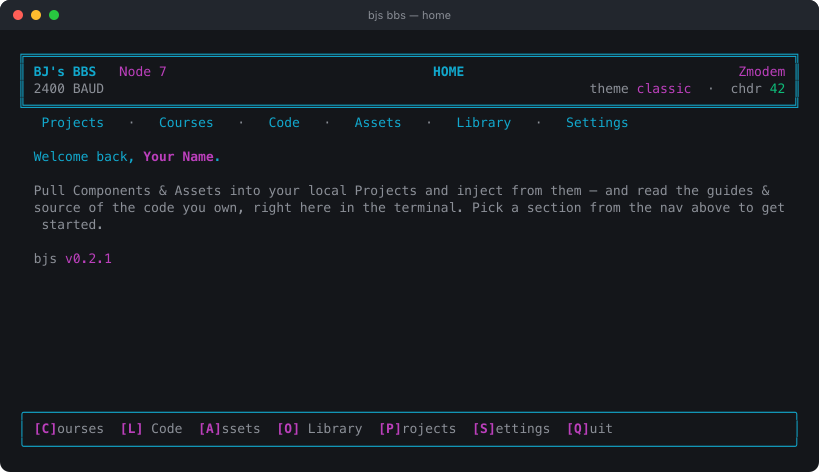 The BBS home screen: the masthead with your theme and cheddar balance, the section nav, and the hotkey footer
| Section | What it shows |
|---|---|
| Projects | Your scaffolded projects; pick the one downloads land in |
| Courses | Courses you own, readable lesson by lesson right here |
| Code | The component library — name, category, and whether your account can access it |
| Assets | 3D models and media — type, format, size, downloads |
| Library | Your account: cheddar balance and every file you've downloaded |
| Settings | Theme, animations, mouse, and re-syncing the library listing |
Code is the market you buy from; Library is what you already own. They are two different screens, and the nav on the site splits them the same way.
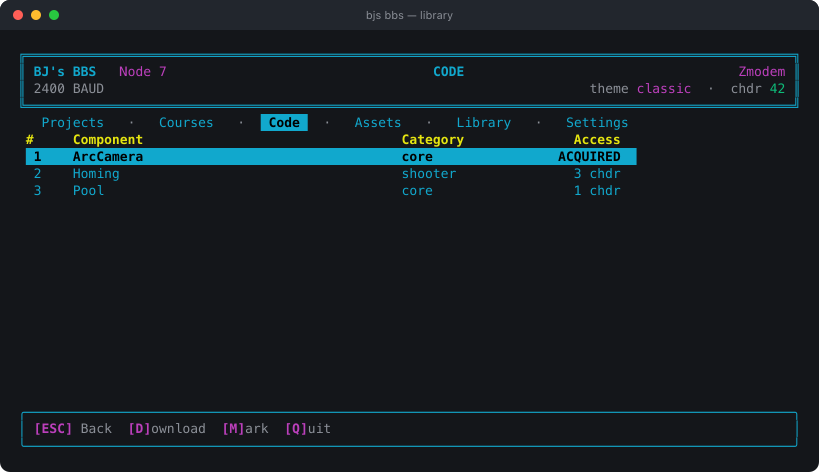 The Code section: every component with its category and what it costs you — ACQUIRED if you already own it, otherwise a price in cheddar
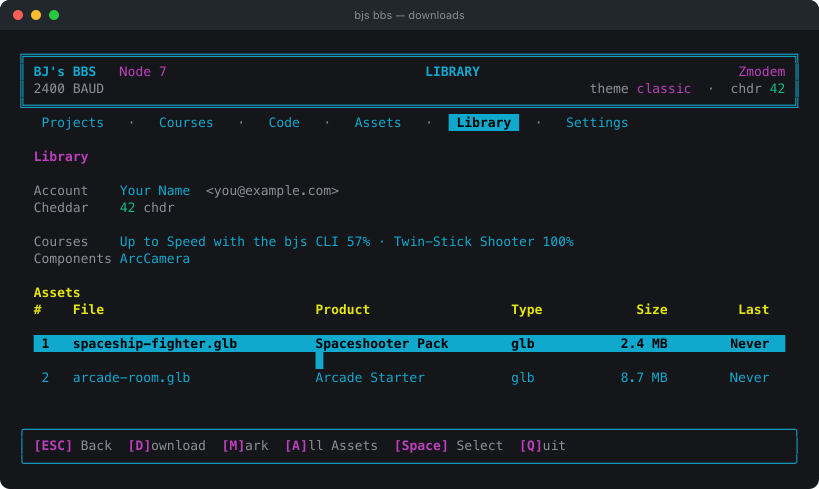 The Library section: your account and cheddar balance over everything you own — courses with progress, components, then downloaded assets
Getting around
Arrow keys move, Enter selects, Esc goes back, Q quits. In Code and
Assets, mark what you want and press D — a project picker lets you choose
exactly where it lands (components into src/Components, assets into your
asset path).
Six themes ship built in, and the one you pick in Settings is remembered for later sessions.
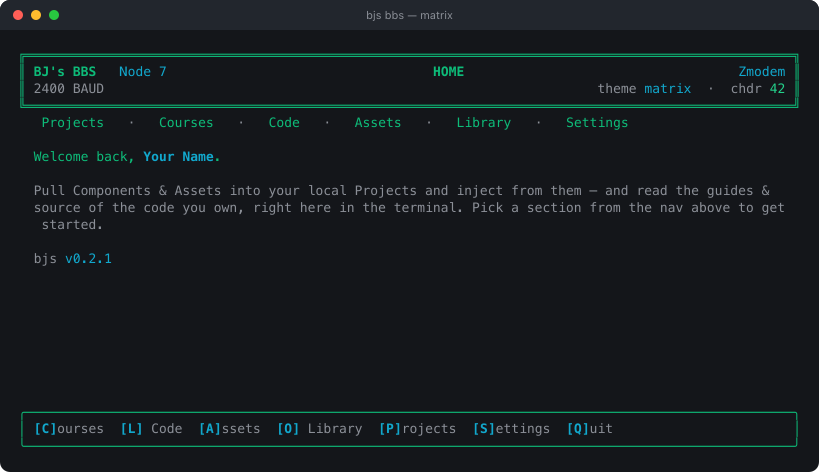 The BBS home screen in the matrix theme — green on black
| Option | Description |
|---|---|
-t, --theme <theme> | Colour theme (also switchable from Settings) |
--no-animations | Disable animations (helps on slow terminals) |
--no-mouse | Keyboard-only (for terminals without mouse support) |
Staying Up to Date
The binary self-updates. On startup it does a throttled background check and silently swaps in a newer build when one exists (an atomic, SHA-256-verified replace). To force a check now:
To skip the automatic check (e.g. in CI, or to pin your current version), set:
Configuration
State lives in your home directory, unchanged from the npm CLI so an existing login carries over:
It holds your auth tokens, user info, and preferences (theme, animations, mouse), plus your default project.
Troubleshooting
bjs: command not found — ~/.local/bin isn't on your PATH. Reopen your
terminal or add it: export PATH="$HOME/.local/bin:$PATH".
"Not logged in" — your token expired or was cleared. Run bjs login again;
confirm with bjs whoami.
"No project" / downloads land in the wrong place — set a default with
bjs use <path>, or pass --project <path> (or -o <path>) on the download.
Garbled BBS display — disable animations: bjs bbs --no-animations, or
reset your terminal and relaunch. If the mouse misbehaves, use --no-mouse.
Stuck on an old version — run bjs update; make sure BJS_NO_UPDATE isn't
set in your environment.