9 minutes
Test It and Tune It
TL;DR: A system never touches Babylon directly, so you can run it in a test with a mock renderer and check the numbers. Then the other half: panels that show and change a running game, and the one call that makes a tuned value survive a reload.
Every lesson so far checked its work by eye or by console.log. That works while you are looking. A test checks the same thing every time you run npm test, and the bjs CLI's submit step warns about any component without one.
A test for Spin
The scaffold ships with VitestThe test runner the scaffold installs. npm test runs every *.test.ts file once. and a test script. Save this beside the component as src/components/Spin/Spin.test.ts:
MockRendererAdapter comes from @babylonjsmarket/ecs. It draws nothing and records each call in renderer.calls. The test builds a World on it, adds the real MeshPrimitiveSystem so the box gets a mesh handle, and calls world.update(0.5) twice by hand. No browser, no canvas, no GPU. Run it:
Two files: yours, and src/scenes/scenes.test.ts, which the scaffold wrote to check that the default scene loads. Vitest also prints 16 lines starting Sourcemap for ".../node_modules/@babylonjsmarket/... above the result. They come from the packages' build and do not affect the run.
Break it: forget dt
In Spin.ts, change += spin.speed * dt to += spin.speed, the mistake Lesson 1 warned about. Run npm test:
Two frames added the full speed each time: 4 radians instead of 2. On screen that bug only shows as "spins a bit fast", and faster still on a 144 Hz monitor. The test names the line and the number. Put * dt back.
The panels you already have
Open the coin arena from Lesson 7. F1 shows the Entities panel with every entity, its tags, and a component count. F2 shows the EventBus panel, grouped by entity. Most arcade components also ship a debug panel of their own, as a <Name>Debugger component. They live in @babylonjsmarket/arcade/viz, so tell the game where to find one, in src/main.ts right after new ArcadeGame(...):
Then name it on the hero in the scene, next to the component it tunes:
Reload. A Keyboard Mover panel opens with a speed slider at 6.0, a "Face direction of motion" checkbox, and a Reset to Defaults button. Drag the slider while you walk and the hero speeds up mid-stride. A debugger is a component like any other: a scene names it, a resolver loads it, a system builds it.
Your own panel
A stock panel only knows its own component. For a value in your game, register a panel yourself. Save src/TuningSystem.tsx. The panels are drawn with Solid, a small UI library the scaffold already installs. Its JSX lets you write HTML tags inside TypeScript, which is why the file ends in .tsx:
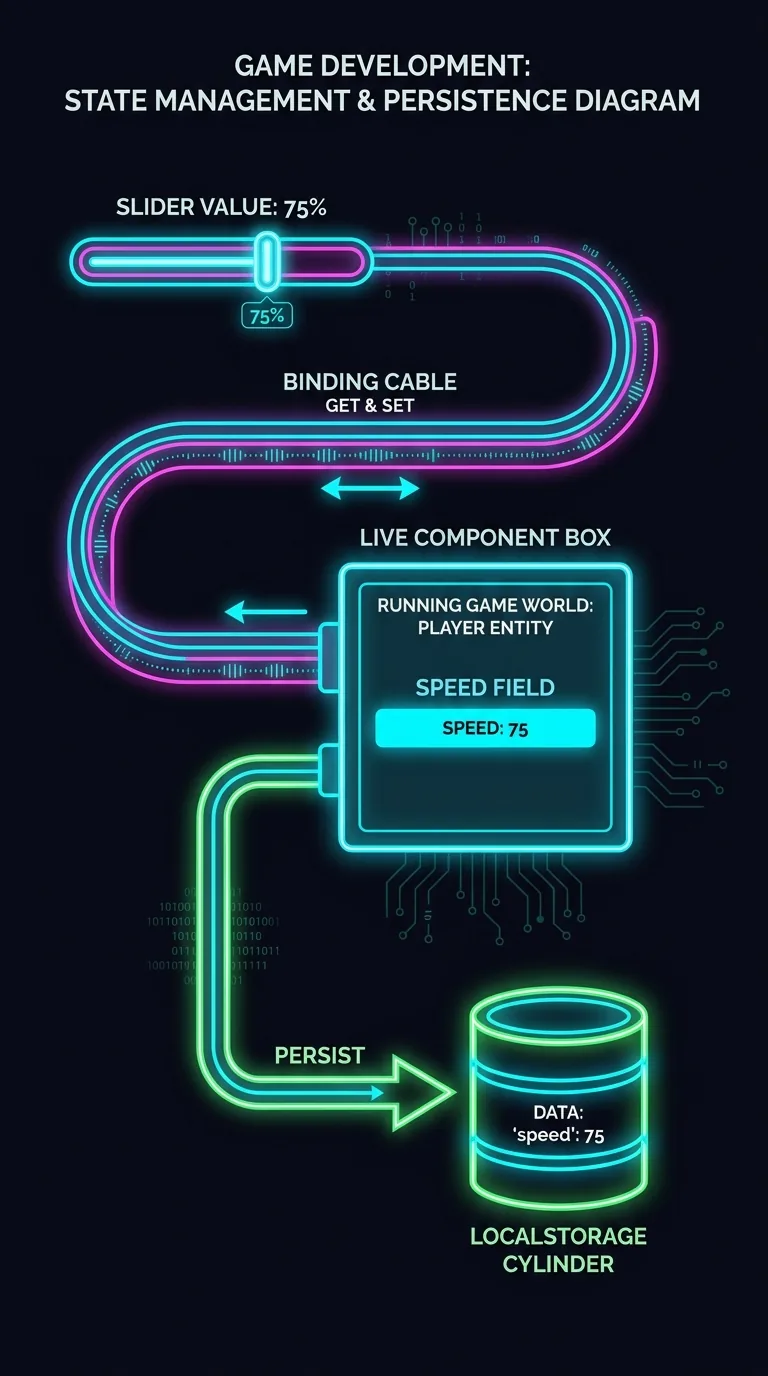
The system waits in onUpdate until the Hero exists, then registers one panel. createSignal holds a value Solid watches: speed() reads it, setSpeed(v) writes it, and the label redraws on each write. mover is the same KeyboardMoverComponent object that KeyboardMoverSystem reads every frame, so push changes the game on the next frame. setPanelData saves the value in localStorage, the browser's small key-value store that survives a reload, and getPanelData reads it back the next time the panel draws. Add game.world.addSystem(TuningSystem) to src/main.ts. To watch the live value, log it every second and a half:
Drag the Tuning slider to 12, then reload:
Break it: comment out setPanelData
Comment out the setPanelData line and reload. The speed is still 12, because the 12 you saved is still in localStorage and getPanelData reads it. Clear it: type localStorage.clear() in the console and reload. Then drag to 12 and reload once more:
The slider still moved the hero, because mover.speed = v is a plain write to the live component. Nothing saved it, so the reload rebuilt the component from the scene's 6. Uncomment the line. When a value feels right, copy it into the scene JSON so it becomes the new default for everyone.
Where the course leaves you
You have a project with your own component, Spin, split into Spin.defs.ts and Spin.ts, with a test beside it. You have a scene built from library parts, glued by one system, spawning from a pool. The bjs CLI course picks up from here: it points the bjs tool at this same my-game, downloads components and scenes into it, and packages Spin for the marketplace.
Next: Log In to the Marketplace: the first lesson of the bjs CLI course.