
7 minutes
Scaffold a Project
TL;DR — One command scaffolds a complete, running BabylonJS game into an empty folder. First it asks two questions: which rendererThe 3D engine plus physics pairing the whole project runs on — babylon, babylon-lite, or three — chosen once at scaffold time. and which kindThe first scaffold choice: 'arcade' for a walk-up room with cabinets that launch many games, or 'game' for a single starter scene.. Then it pins today's framework versions instead of frozen numbers. Skip this lesson if you've already scaffolded an arcade project and know its
src/Components/andregistry.tsshape. Later lessons just drop components into it.
Last lesson ended with bjs whoami printing your email. That was a real session, saved to ~/.bjs/config.json. But the account had nothing to point at yet. Now you give it something: a complete BabylonJS game, written into an empty folder in about a minute. First the command asks you two questions. Which renderer? And which kind? Your answers decide things you can't easily change later. One more thing happens under the hood. Someone wrote the templateThe fixed set of files a scaffolder copies and fills in to produce a new project. months ago. Yet a fresh scaffoldTo auto-generate a project's starting folders and files so you can begin coding immediately instead of wiring everything by hand. always installs today's published versions of the frameworks. No one edits a version number between releases. So how does the scaffold know what "current" means?
The forwarder behind npm create
The entry point is npm create:
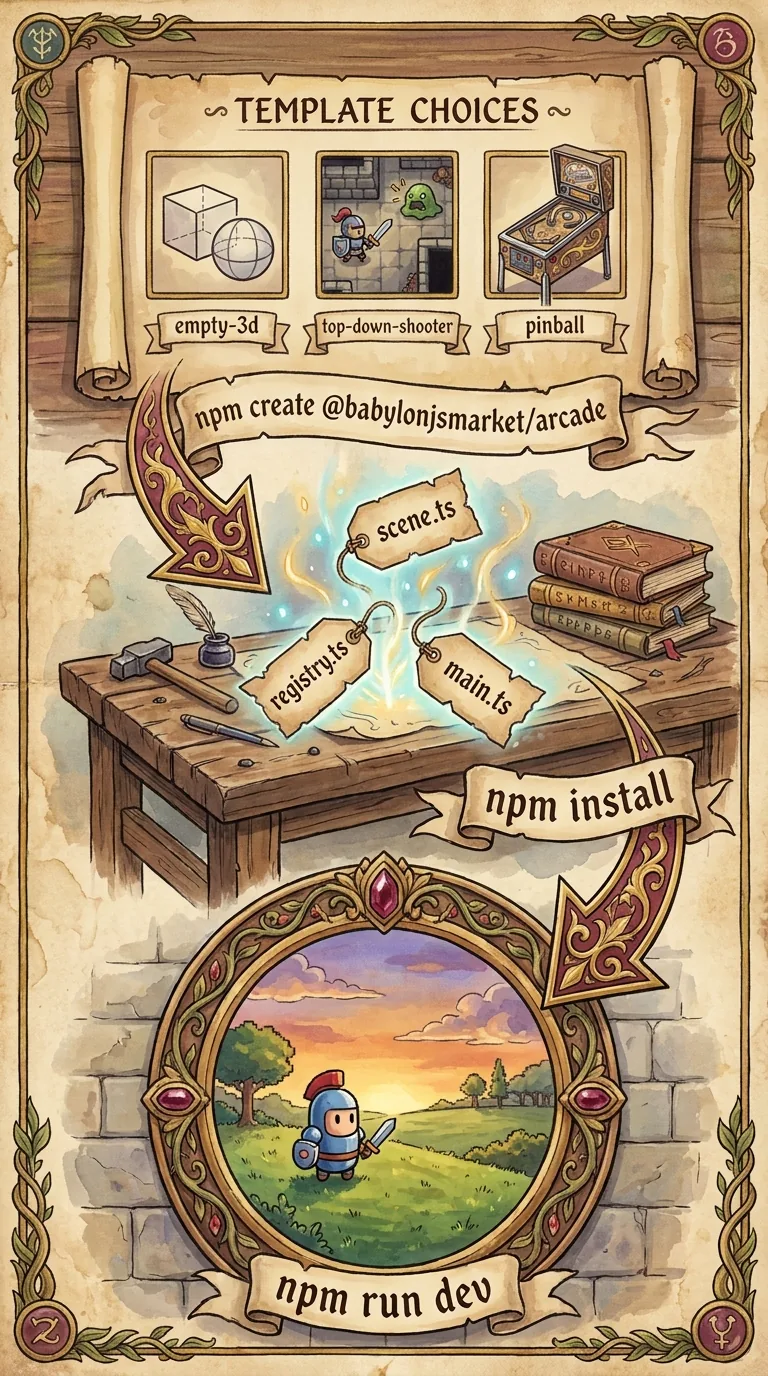
npm create @babylonjsmarket/arcade downloads a tiny package called @babylonjsmarket/create-arcade and runs it. But that package barely does anything. It scaffolds nothing on its own. It's a forwarderA tiny program whose only job is to resolve another package and hand control to it, adding no logic of its own.. All it does is resolve the real scaffolder — which ships inside @babylonjsmarket/arcade — and re-invoke it with init in front, passing your my-game argument through untouched. So npm create @babylonjsmarket/arcade my-game and arcade init my-game do the same thing. npm create is the version that works before you've installed anything. Everything else in this lesson happens inside that init flow.
The two questions: renderer, then kind
Run it with no flags and the scaffolder becomes interactive. First it asks for a project name. Then it asks two more things. Both are project-wide choices, and it bakes them into the files it writes:
The scaffolder's own --help spells out both choices and the flags that skip the prompts. Alongside --kind and --renderer, it documents --overwrite, which replaces any existing files in the target directory, and --demo, which scaffolds a renderer-adapterThe seam that wraps a graphics engine so the rest of the game talks to one interface and never imports Babylon or Three directly. comparison — one scene drawn side-by-side by the Babylon, Three, and Babylon Lite adapters — instead of a game or arcade. Its wording leans on the entity-and-componentIn Arcade ECS: a named, reusable bundle of data (and the behavior its System runs) attached to an entity — not a UI widget like in React or Vue. vocabulary of the Arcade ECS course, linked further down.
Renderer is the bigger commitment, so it comes first. It picks the 3D engine and the physics engine your whole project runs on. Your choices are babylon (Babylon.js Classic with HavokA physics engine paired with the Babylon renderers in the scaffold.), babylon-lite (the WebGPUThe newer browser graphics API the babylon-lite renderer targets, succeeding WebGL.-targeted Lite build with Havok), or three (Three.js with RapierThe physics engine paired with the Three.js renderer in the scaffold.). You choose once because every scene starts up through one adapter. The adapter is a thin layer. It translates your game's calls into whichever engine you picked, so your components never name Babylon or Three directly. (A component here is an Arcade ECS component: a named, reusable bundle of data and behavior you attach to things in a scene, not a UI widget like in React. The Up to Speed with Arcade ECS course teaches that model in full.) The adapter is wired into src/main.ts, and its engine packages go into package.json. To switch renderers later, you'd have to rewire that boot and swap those dependencies. So pick on purpose. Start with babylon.
Kind is about scope. A game is one starter scene. That's the right pick when you're learning a single mechanic or following this course. An arcade is a walk-up room with cabinets, where each cabinet launches its own game scene. It's the same data-driven idea at a bigger scale: many scenes sharing one library. The course examples assume game, but the file shape is the same either way.
You can answer both questions up front with flags and skip the prompts entirely:
That -- is npm's pass-throughThe `--` separator that tells npm to stop reading flags and hand the rest straight to the scaffolder. marker. It tells npm create to stop reading flags for itself and hand everything after it to the scaffolder. With arcade init you'd drop the --, since you're calling the scaffolder directly. --overwrite replaces the target directory without asking. --help prints the full option list.
Why the dependency versions stay current
Here's the trick from the top of the lesson. The scaffolder has to write a package.json. That file lists which other packages your project needs. It depends on @babylonjsmarket/ecs, @babylonjsmarket/arcade, and a few more. But at which versions? Say you typed a fixed value like "@babylonjsmarket/ecs": "^2.4.1" into the template. It would freeze on the day you wrote it and fall out of sync with every release after. So the scaffolder never writes fixed values. It reads the versions live, right when it scaffolds.
When you run npm create @babylonjsmarket/arcade, npm has just installed the latest @babylonjsmarket/arcade to do the scaffolding. The CLI ships inside arcade, so it reads arcade's own version straight from arcade's package.json. For @babylonjsmarket/ecs, viz, and the eslint plugin, it walks up the node_modules tree from where it's running, finds each one's package.json sitting right there, and reads the real version off disk. Then it turns a plain 2.4.1 into a ^2.4.1 semver rangeA version specifier like ^1.2.3 that pins which published releases of a dependency are allowed to install. for the new package.json — or, if a package wasn't found on disk, it writes latest instead. So the version the scaffold pins is always the version that just shipped. No person keeps a list up to date. The freshly installed packages are the list.
What the scaffold writes
The init flow creates the project, then prints the next commands to run. It tailors them to whichever package manager you used — npm, pnpm, or yarn — so you can paste them straight back in. The example output below is what you'll actually see.
With npm, that prints the three lines you run next (cd my-game steps into the new folder):
Run those, open the URL the dev serverA local web server Vite runs that serves your app and rebuilds it as you save. prints, and you're looking at a running BabylonJS game. It has real-time shadows, a sky that tracks the sun, and an orbit cameraA camera that circles a focal point — you drag to rotate the view around the scene. you can drag to rotate around the scene. The folder behind it has a deliberate shape:
src/main.ts is the boot. It's a short file, nearly the same across projects, and you almost never edit it. It builds the game on the adapter you chose. It mounts the on-screen debug panels (an entity inspector and an EventBus viewer you toggle with hotkeys). It loads a scene and starts the render loop, the cycle that redraws the scene every frame. src/scenes/ holds the game as data: named entities, each listing the components it uses by name. The entity-component-system model behind it belongs to the Up to Speed with Arcade ECS course. This course links there instead of re-teaching it.
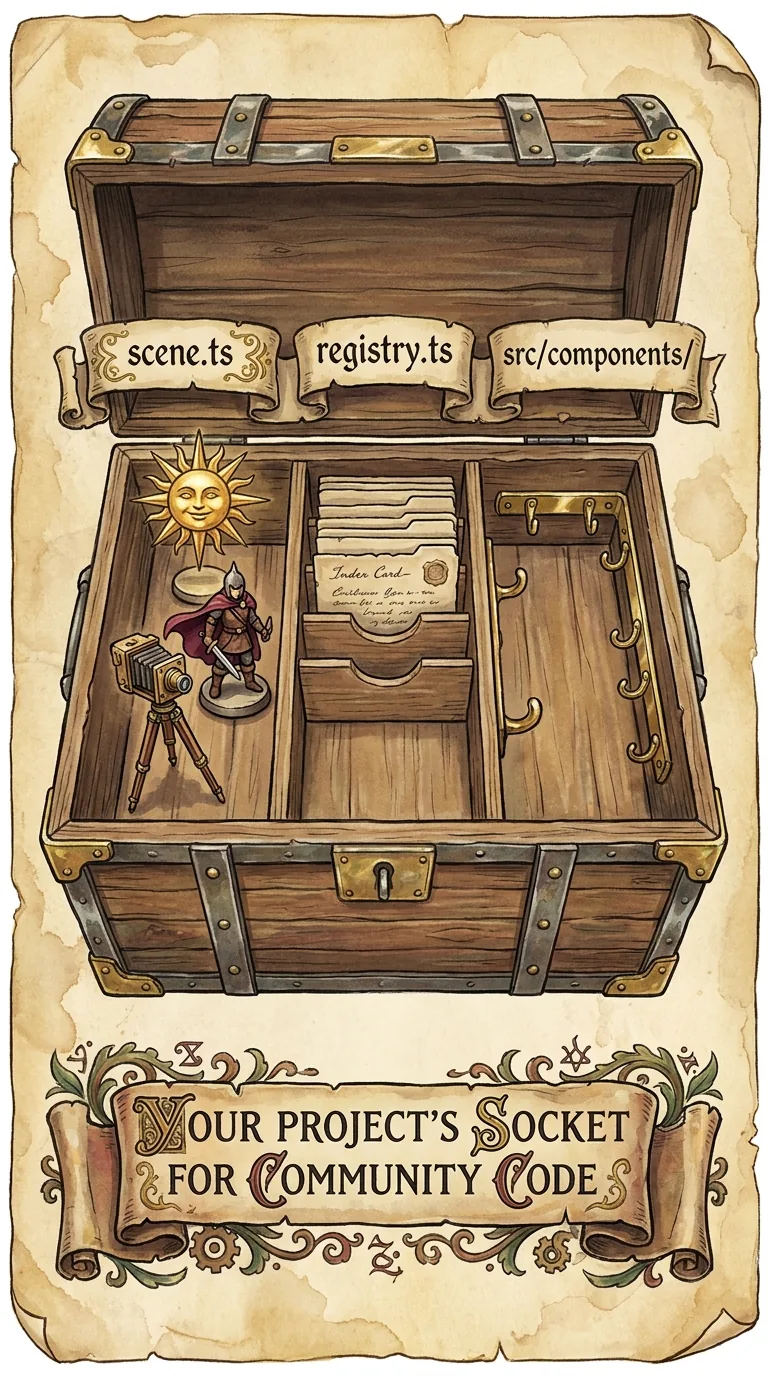
src/registry.ts is where your own components get wired in. On the current scaffold, though, there's almost nothing to wire. It uses ViteThe dev server and build tool this project runs on; it serves the app while you code and bundles it for production.'s import.meta.glob to auto-discover the components you drop under src/Components/. So adding one means dropping in a folder-shaped module and nothing else. A component is a folder whose entry file matches its name, like src/Components/MyThing/MyThing.ts. The glob registers only that entry file. It skips the sibling files in the folder (.core.ts, .test.ts, .panel.tsx, .viz.tsx). (The glob also covers lowercase src/components/, where arcade eject writes, so eject output gets picked up too.) Every component a stock scene names already lives in @babylonjsmarket/arcade and resolves on its own. The registry is for the components that aren't from the package: yours, and the ones you pull in over the next lessons.
The npm scripts are standard Vite. You'll use the first one constantly:
| Script | What it does |
|---|---|
npm run dev | Hot-reloading dev server |
npm run build | Production bundle |
npm run preview | Serve the built output to check it |
npm run lint | Run the framework's lint rules over your code |
The .claude/ folder ships a Claude Code skill for this framework. So when you ask Claude to add an entity or write a component, you get clean code for the real APIs instead of guesses.
This folder is shaped exactly like the marketplace it connects to. A component you browse, pull down, or write all land in the same src/Components/ slot under the same registry. It's one shape the whole way. So nothing you fetch needs changing to fit, and nothing you build needs restructuring to share. For homework, scaffold a game, run it, and change one number in a scene to watch the hot reloadThe dev server reapplying a code change in the running page without a full refresh.. Once that edit takes a single keystroke, dropping in someone else's component is the same move. That's exactly where you're headed next.
Next: Browse the Catalog — browse the entire component library from a full-screen, keyboard-driven terminal BBS, with a credit price next to every row.